
ChatGPT is one of the best reasoning tools most of us have ever used. Ask it a question and it thinks clearly, writes well, and gets you 80% of the way there. What it doesn’t have — yet — is a persistent, portable view of the things you’ve come across online. Every chat starts fresh: it holds some historical chat memory, but the articles, docs, reels, and videos you saw this week live in tabs and bookmarks ChatGPT can’t see. So you paste. A paragraph here, a link there, re-explaining the same background each time.
That’s the gap Kepler fills — and as of now, the ChatGPT integration is shipped and live. Kepler isn’t another AI model and it doesn’t replace ChatGPT. It gives ChatGPT a memory layer you control: you save links into a space as you browse, Kepler pulls the usable context out of them, and ChatGPT answers questions grounded in what you actually saved.
What ChatGPT does brilliantly — and where a context layer helps
None of this is a knock on ChatGPT. Persistent, curated, cross-tool context simply isn’t what ChatGPT is built around — it’s a reasoning engine first. A few everyday gaps show up as a result:
- Chat memory is light by design. ChatGPT remembers some facts about you across chats, but it’s not a place to deliberately store and organise the dozens of sources behind a research project. It’s personalisation, not a research library.
- Projects can hold files, but not annotations. You can upload documents into a Project, but you can’t highlight the three lines that actually matter, and those highlights can’t travel with the source as a relevance signal.
- Memory doesn’t move between tools. Anything ChatGPT remembers is locked to ChatGPT. Switch to Claude or another model and you start over. A friend uses a different LLM but you want to share memory? Create a shared Kepler space.
- Logged-in and long-form sources fall out. Content behind a login, or buried in an hour-long video with no transcript, rarely makes it into a chat at all.
How Kepler solves these
Kepler is URL-first. You save the things you find useful — articles, posts, papers, YouTube videos, docs — into a space (think: a project folder for context). Each save maps directly onto the gaps above:
- A real research library. A space is a deliberate, organised home for everything you saved on a topic — not a handful of remembered facts.
- Annotations that carry weight. Highlight the lines that matter and those highlights become a relevance signal Kepler uses when it extracts context.
- Tool-agnostic by default. The same saved space works across ChatGPT, Claude, and other AI tools via MCP. Your context isn’t trapped in one product.
- Captures the hard stuff. For dense sources — a long PDF, a video with no transcript — trigger a deep extract so the detail is captured too.
Crucially: Kepler only sees what you choose to save. Connecting a source grants permission; it doesn’t crawl your data.
Step by step
- Create a space for the thing you’re working on — “Q3 competitor research,” “Japan trip,” “thesis sources.”
- Save as you browse. Use the web extension or mobile share sheet to drop links into the space. Highlight the lines that matter — those highlights become a relevance signal.
- Let Kepler pull context. Each save gets a basic extraction automatically (title, summary, text). For dense sources, trigger a deep extract.
- Connect ChatGPT to your space via the Kepler connection — full walkthrough in Connect Kepler to ChatGPT.
- Ask grounded questions. Now ChatGPT answers from your saved context.
ChatGPT without Kepler vs. ChatGPT with Kepler
Research synthesis
Without Kepler — “Summarise the main arguments across the five articles I read on RAG evaluation.” → “I don’t have access to those articles. If you paste them, I can help.”
With Kepler — “Summarise the main arguments across the RAG-eval articles in my Research space, and flag where they disagree.” → (pulls the five saved sources) “Across the five, three argue retrieval quality dominates; two argue annotation/curation matters more. They disagree most on…”
Trip planning
Without Kepler — “Plan my Japan trip from the stuff I’ve been reading.” → “I can’t see what you’ve read — tell me the places and I’ll build an itinerary.”
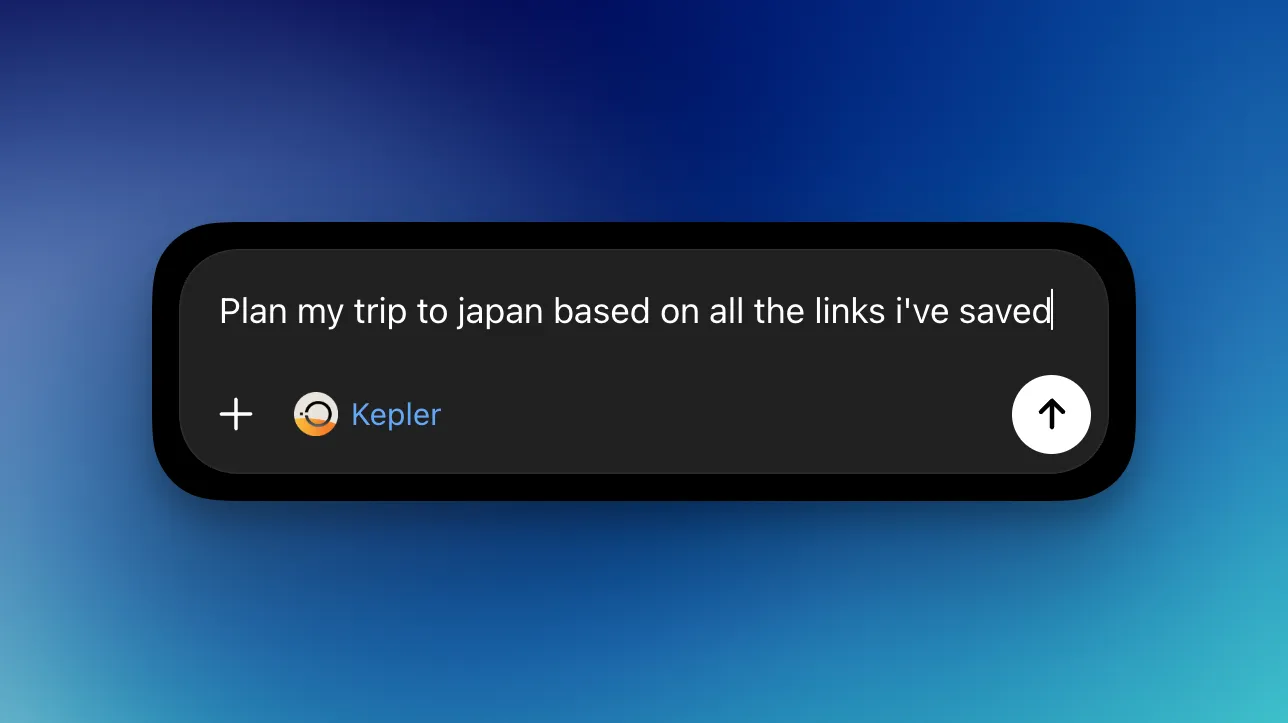
With Kepler — “Build a 7-day itinerary from the guides and posts in my Japan space, weighted to the spots I highlighted.” → (reads your saved guides and highlights) “Here’s a route built around the three neighbourhoods you flagged, with the two restaurants you saved slotted in…”
Coming back weeks later
Without Kepler — a folder of bookmarks you have to re-open and re-read one by one.
With Kepler — “Remind me what I concluded in my thesis-sources space and what’s still unresolved.” → (reads the annotated set) “Your saved sources converge on X; the open question you flagged twice is Y…”
Same model. Completely different answers — because it finally has your context.
Why not just paste?
Pasting doesn’t scale and loses the source. Kepler’s context is tool-agnostic — the same saved space works across ChatGPT, Claude, and other AI tools via MCP — and it’s yours: a curated, annotated set that gets more useful the more you save.
Get started
Connect Kepler today — it’s free. Install the extension, start a space, and connect it to ChatGPT — the step-by-step guide is in Connect Kepler to ChatGPT. Get Kepler to start.
Connecting uses MCP, which is free and unlimited on every tier — it never costs AI credits.
Kepler helps you create context for AI from the links you save. It improves the AI tools you already use — it isn’t one itself.